Codex account usage
Codex weekly reset calculator
Compare your account's weekly and 5-hour windows. Paste usage rows or enter the times shown in Usage.
Use the time shown in your account
Local only: this does not read your account. Inputs are not uploaded or saved automatically. How it works
Get my reset time in Usage ↗ or run /status.
Paste /status to compare usage windows
Copy only the usage-limit rows. Parsing runs in this tab; pasted text is not uploaded or saved. Review the result before applying it. Do not paste tokens, cookies, passwords or account details.
UTC is the initial time zone; change it to match the account. Dates and years are left blank until you provide them. Supported rows use English CLI labels; other formats can be entered manually below.
Walkthrough: from Usage to a reminder
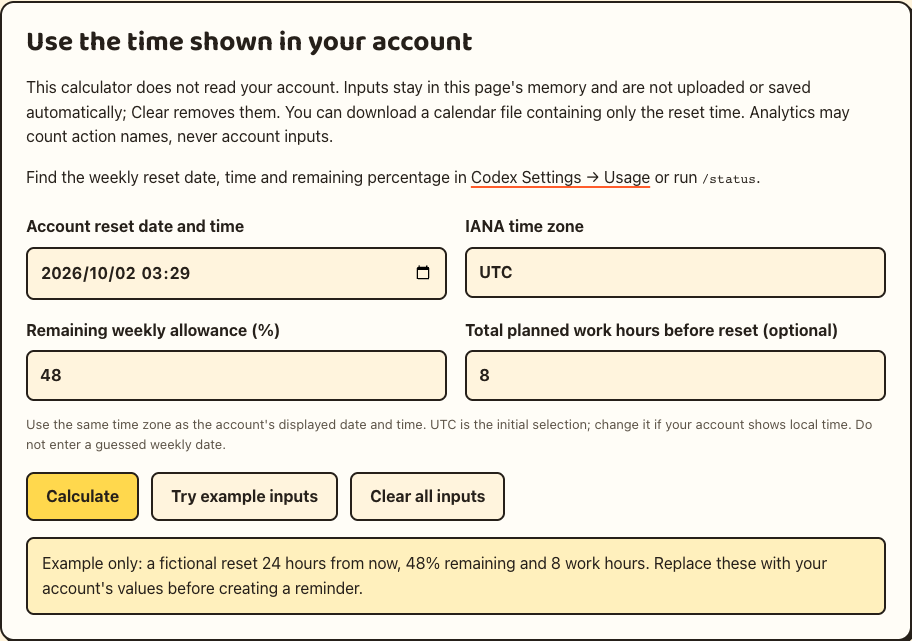
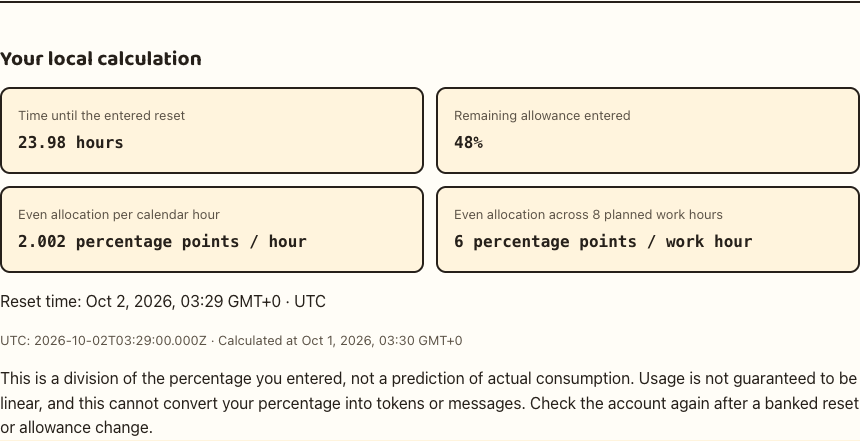
These show the earlier calculator layout with fictional example data, before the dual-window controls were added on October 1, 2026. They are not account screenshots.
- Find your weekly reset timestamp and remaining allowance in Codex Settings → Usage or /status. Copy the displayed date and its time zone; do not substitute a public announcement time.
- Paste only the usage-limit rows into the parser, review the date and time zone, then confirm; or enter the values manually. Add planned work hours and Calculate. Examples let you explore without account data and do not create reminders.
- For your own reviewed account values, download the calendar reminder and import the .ics file into your calendar. Replace it when Usage changes; enable calendar notifications for the 15-minute alert.
How to use the result
- Open your account's Usage page. Select the weekly allowance you want to plan around and copy its reset time and remaining percentage.
- Enter the displayed time with its actual time zone. The calculator rejects impossible local times and asks you to choose if a clock-back hour occurs twice.
- Optionally enter the total hours you expect to work before that reset. The result spreads your remaining percentage across those hours, in percentage points per work hour.
The arithmetic is: hours left = (entered reset instant − current time) ÷ 3,600,000 milliseconds; allocation = remaining percentage ÷ hours. For example, 48% across 8 planned work hours is 6 percentage points per work hour. This is a budgeting illustration, not a guaranteed consumption rate.
No linear usage rate is guaranteed: model, task, context and tool use can change how quickly allowances are consumed. A percentage does not identify a token or message count. The optional parser reads supported usage-limit rows in this browser tab; it does not sign in or refresh your account.
Keep a one-time reset reminder
After entering your own account values and calculating, download the .ics file and import it into your calendar. It contains the reset time and a 15-minute alert, with no quota percentage. Calendar notification settings determine whether an alert appears. Replace the event whenever Usage shows a different reset time.
Example: budget a remaining allowance
Suppose Usage shows 30% remaining and you plan 10 work hours before the displayed reset. The calculator gives 3 percentage points per work hour (30 ÷ 10). If 48 clock hours remain, that still means 10 planned work hours, not 48 hours of continuous work. This is a pacing target; task size and model choice can make actual usage uneven.
When to enter a new account time
If the entered time has passed, refresh Usage before continuing. After using a full banked reset, your weekly window can move; update both the timestamp and remaining percentage. Account or workspace changes can also make old inputs irrelevant. The clock updates locally every 30 seconds while a result is open, but it does not poll your account.